The Top Sony A7V Underwater Settings
Posted by Nirupam Nigam on March 6th, 2026
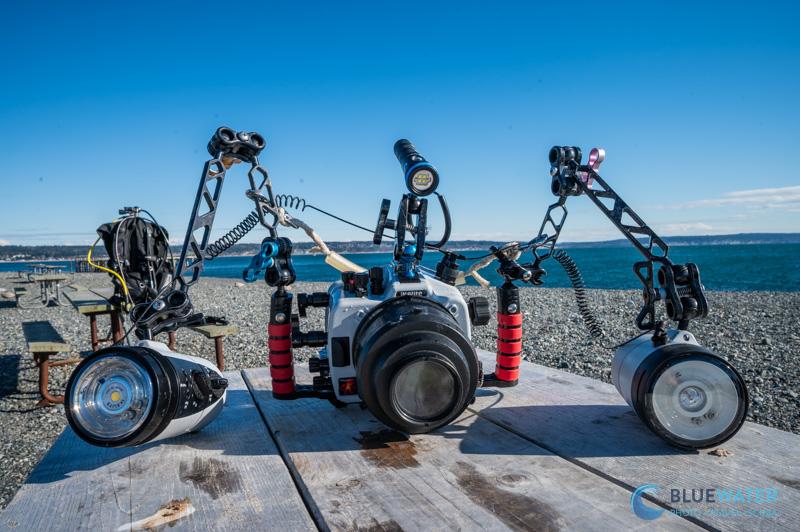
The Sony A7V is Sony's newest generation full frame mirrorless camera, bringing improved autofocus tracking, enhanced AI subject recognition, strong 33 megapixel image quality, and robust video features (including 4K/120p recording) into a very versatile body. The Sony A7V inherits Sony's new menu system which is much more intuitive than previous menu systems. But if you have handled any of Sony's newer bodies like the A1 II or the A7R V, this menu will seem very intuitive. After reviewing the camera's menu structure and customization features, our team has compiled the best Sony A7V settings for underwater photography and video. If you're still building out your system, be sure to check out our underwater housing guide for the Sony A7V and email sales@bluewaterphotostore.com to get setup with a custom A7V underwater setup.
Top Tip for Underwater Photographers with Strobes:
If your screen is black when you are shooting with strobes, check your live view display settings. Menu -> Shooting Display -> Live View Display Set. Turn this setting "off" for photos with strobes and "on" for photos without strobes (including above water). This setting controls if your exposure settings are applied to the LCD or EVF preview. Sony includes this setting on the A7V along with the rest of its shooting display controls.
Sony A7V Underwater Settings Cheat Sheet
If you just want a quick starting point, use the settings below. These are the settings we recommend for most underwater photography situations with the Sony A7V. You can always fine tune them depending on the dive conditions, your strobes, and the subject you are shooting.
Photo Settings (General)
| Setting | Recommended Value |
|---|---|
| Shooting Mode | Manual |
| Drive Mode | Continuous Low |
| Focus Mode | AF-C (Continuous Autofocus) |
| Focus Area | Tracking: Expand Spot |
| Subject Recognition | Animal |
| File Format | RAW |
| Metering Mode | Spot (with strobes) |
| White Balance | Auto (RAW) or Custom for video |
| SteadyShot | On |
| Live View Display | OFF (when shooting with strobes) |
Wide Angle Strobe Settings
These are great starting exposure settings for reef scenes, divers, sharks, turtles, and large marine life.
| Setting | Value |
|---|---|
| Shutter Speed | 1/160 – 1/250 |
| Aperture | f/8 – f/13 |
| ISO | 100 – 200 |
| Focus Mode | AF-C |
| Focus Area | Tracking Expand Spot |
Macro Strobe Settings
These settings work well for nudibranchs, shrimp, crabs, and other small critters.
| Setting | Value |
|---|---|
| Shutter Speed | 1/160 – 1/250 |
| Aperture | f/16 – f/22 |
| ISO | 100 – 250 |
| Focus Mode | AF-C or MF with Focus Magnifier |
| Focus Area | Center / Small Spot |
Underwater Video Settings
| Setting | Recommended Value |
|---|---|
| Resolution | 4K |
| Frame Rate | 60p |
| Codec | XAVC S 4K |
| Shutter Speed | 1/120 (for 60p) |
| Aperture | f/8 – f/13 (wide angle) |
| ISO | Adjust for exposure |
| White Balance | Manual Custom White Balance |
| Picture Profile | Standard or HLG3 |
| SteadyShot | Active or Standard |
| Zebra | On |
Quick Underwater Shooting Tips
- Use AF-C with tracking for most underwater photography.
- Set Live View Display OFF when shooting with strobes so the screen doesn't go black.
- Increase shutter speed to darken the background and enhance sunballs.
- Use f/11 – f/13 for wide angle reef scenes.
- Use f/16 – f/22 for macro depth of field.
- Reset your manual white balance every few feet when shooting ambient light video.
Sony A7V Buttons, Dials, Joysticks & Customizations
If you've used recent Sony full frame mirrorless cameras, the Sony A7V is going to feel very familiar. Like Sony's other recent bodies, the A7V is highly customizable, with a joystick, multiple custom buttons, customizable dials, memory recall modes, and a very useful Fn menu. Sony's menu system on the A7V includes Custom Key/Dial Set, Fn Menu Settings, and Camera Set. Memory, which are all key tools for setting up an underwater workflow.
The controls on the camera are optimized for flexibility and customizability. There are multiple custom buttons where you can assign almost any function on the camera. This is done by hitting Menu -> Setup -> Custom Key/Dial Set. If you're setting up the camera for underwater use, this is one of the first places we recommend spending some time.
There are front and rear dials as well as a rotating control wheel, giving you ample options for assigning shutter speed, ISO, and aperture. For myself, I generally like to keep my exposure triangle accessible at all times underwater. That means keeping aperture, shutter speed, and ISO on dials that are easy to reach in the housing.
Assigning Functions to Dials
Menu -> Setup -> Dial Customize
This is where you can assign a dial to control ISO, shutter speed, or aperture. A common underwater setup is:
1. Front Dial - Aperture
2. Rear Dial - Shutter Speed
3. Control Wheel - ISO
This gives you quick control of all exposure settings underwater without needing to jump into the menu.
Mode Dial & Memory Recall Settings
The Sony A7V includes memory recall features, which are extremely useful underwater. On the A7V, these settings are in the Shooting menu (red), panel 4 "Shooting Mode". To set your memory recall settings, go to:
Menu -> Shooting (red) -> 4 "Shooting Mode" -> Camera Set. Memory
This allows you to save your current shooting configuration to one of the memory slots on the mode dial. Sony notes that the 1 / 2 / 3 recall positions call up settings that have been registered in advance in Camera Set. Memory.
I recommend something like this:
Memory 1 - Wide angle photos with strobes
Memory 2 - Macro photos with strobes
Memory 3 - Underwater video
This makes it much easier to switch workflows quickly on a dive boat or between dives.
Drive and Autofocus Settings
The Sony A7V offers all of the autofocus tools we'd expect from a modern Sony camera, including Focus Mode, Focus Area, Tracking, and Subject Recognition AF. Sony also includes drive mode controls such as Drive Mode, Cont. Shooting Speed, and Pre-Capture Settings.
For underwater photography, I like to keep things fairly simple.
Drive Mode: Continuous Low
Focus Mode: AF-C
Continuous low is usually the best balance when shooting with strobes. It gives you a small burst without overwhelming your strobes or filling your buffer too quickly.
I leave the autofocus mode set to AF-C, which is autofocus continuous mode. This allows the camera to focus all the time and to take photos even if the camera isn't fully locked before the shutter is pressed. Sony's autofocus is now so good that AF-C is my method of choice for almost all underwater photography.
Autofocus Area and Tracking
The Sony A7V has excellent autofocus area options underwater. Sony includes Focus Area, Tracking subject (Tracking function), AF Area Registration, and Focus Area Limit in the Focus tab (purple).
For most underwater still photography, our favorite setting is:
Focus Area - Tracking: Expand Spot
This works very well because it allows you to place the autofocus box over the subject you want in focus, half press the shutter or hit AF-ON, and then let the camera track the subject. This is especially helpful for:
1. Fish portraits
2. Moving subjects like sharks, sea lions, and turtles
3. Divers swimming through the frame
4. Medium sized macro subjects that aren't staying perfectly still
For very small macro subjects, you may prefer a more fixed AF area and then switch over to manual focus once you have focus approximately where you want it.
Considerations for Underwater Housings
Joystick and AF Point Selection
Selecting your autofocus point with the Sony A7V can get a little tricky underwater if your housing does not support the joystick. Above water, both the touch screen and joystick can be used to move your AF point around. Unfortunately, not all housings support the joystick underwater.
If your housing does not have joystick compatibility, here are a few good workarounds:
1. In photo mode, use AF tracking. This is the best workaround and the one we recommend most often. With tracking enabled, you can put the AF box over the subject you want and then let the camera do the rest.
2. In video mode, use a wider AF area for larger scenes and a more centered AF area for macro. Wide area can work quite well for big animals and reef scenes, but it may not choose the exact point you want in macro situations.
3. Customize a button to toggle between AF and MF. This is one of the most useful underwater video tricks on Sony cameras. Lock focus with AF, then switch to MF and fine tune by moving slightly in and out.
Subject Recognition AF
The Sony A7V includes Sony's latest Subject Recognition AF tools, with menu items for Subject Recog in AF, Recognition Target, and subject frame display controls.
For underwater photography, subject recognition is not always perfect, but it can still be helpful. Sometimes animal recognition works on fish, turtles, or sea lions. I would not rely on it for super small macro subjects, but for larger marine life it is worth experimenting with.
If you want to try it, I recommend:
Subject Recognition AF - On
Recognition Target - Animal
This can help the camera prioritize living subjects in the frame, though underwater backgrounds and low contrast scenes can still confuse it from time to time.
Customizing Your Sony A7V Settings
As I mentioned, the Sony A7V is very customizable. Sony gives you excellent options for custom keys, dials, and Fn menu items, which is critical for underwater use.
To customize your buttons and dials, go to:
Menu -> Setup -> [Operation Customize] -> [Custom Key/Dial Set.]
Here are our recommended starting custom button assignments for underwater photography:
Rear / Back Controls
1. AF-ON - AF On
2. Movie Button - Movie Shooting, don't change it
3. Joystick Press - AF/MF Selector Toggle
4. AEL Button - Focus Area or Finder/Monitor Select depending on your housing needs
Top / Custom Buttons
1. C1 - Focus Mode
2. C2 - White Balance
3. C3 - Drive Mode
4. C4 - Focus Magnifier
Dial/Wheel
1. ISO
2. Shutter Speed
3. Aperture
This is a strong starting point, but every housing is different, and every shooter has a slightly different workflow.
The Fn Menu
The Fn button on the back of the camera is perhaps the most useful button on the system - it opens the Function menu. When you're in an intense shooting situation underwater, the Fn menu allows you to quickly access the settings you change most often.
To customize your Fn menu, go to:
Menu -> Setup -> [Operation Customize] -> [Fn Menu Settings]
The Fn Menu in Photo Mode
Here are our top settings for the Fn menu in photo mode:
1. Drive Mode - allows you to choose your burst mode
2. Focus Mode - we like AF-C
3. Focus Area - Tracking: Expand Spot is our favorite
4. Live View Display - turn on for ambient light, off for strobes
5. White Balance - won't affect your image if you're shooting RAW, but still useful for preview
6. ISO - quick adjustment of exposure
7. Metering Mode - spot metering is often useful with strobes
8. SteadyShot - on
9. Subject Recognition - easy access to animal recognition
10. Silent Mode / Shutter Type - useful for topside shooting, but underwater with strobes you'll usually want mechanical or compatible shutter settings
11. Recording Media - allows you to choose your card slot
12. Flash Mode - if relevant to your topside workflow
The Fn Menu in Video Mode
Here are our top settings for the video mode:
1. Audio Rec Level - useful for topside shooting
2. Peaking Display - allows you to turn peaking on and off
3. ISO - quick exposure adjustment
4. Focus Mode - AF-C or MF
5. Focus Area - wide for many wide angle situations, more centered for macro
6. White Balance - critical for underwater ambient light video
7. Picture Profile / Log Shooting - quick access to Log or standard profiles
8. SteadyShot - set according to your shooting style
9. Zebra Display - useful for exposure monitoring
10. Metering Mode - spot or multi depending on the scene
11. Exposure Mode - allows quick changes between manual and other video exposure modes
12. Live View Display - helpful if you're switching between photo and video frequently
Strobe Considerations
Most underwater still photographers using strobes will want to shoot in manual exposure mode. Typical starting points are:
Wide Angle with Strobes
Shutter Speed - 1/125 to 1/250
Aperture - f/8 to f/13
ISO - 100 to 250
Macro with Strobes
Shutter Speed - 1/160 to 1/250
Aperture - f/16 to f/22
ISO - 100 to 250
Your shutter speed controls your ambient light. Your aperture controls strobe exposure and depth of field. Your ISO can then be used as a final exposure adjustment. If you are shooting sunballs or trying to darken the background, raise your shutter speed as high as your strobe sync and setup allow.
Key Menu Settings
After setting up your Fn menu, the main menu becomes your repository for everything else you may need to adjust on the A7V. Sony organizes the menu by tab and group, and the number assigned to the group is the serial number in that tab.
Panel 1 Shooting (Red) - Image Quality / Rec
1. File Format (movie) - choose your preferred video codec
2. Movie Settings (movie) - set your frame rate and bit depth
3. Log Shooting Setting - for those who want to color grade footage
4. APS-C S35 (Super 35mm) Shooting - useful if you want extra reach underwater
The manual gives the exact path for Log Shooting Setting as:
Menu -> Shooting -> [Image Quality/Rec] -> [Log Shooting Setting]
Panel 4 Shooting (Red) - Shooting Mode
1. Camera Set. Memory - save your underwater shooting setups to the memory positions on the mode dial
Panel 5 Shooting (Red) - Drive Mode
1. Drive Mode - set this in the function menu or directly in the drive mode section
2. Cont. Shooting Speed - useful if you want to fine tune how hard you are pushing the camera and strobes
3. Pre-Capture Settings - useful for fast action, but it will burn through battery life
Shooting Display (Red)
1. Live View Display Set. - critical to understand for strobe shooting
The manual gives the exact path as:
Menu -> Shooting -> [Shooting Display] -> [Live View Display Set.]
Exposure / Color (Pink)
1. Metering Mode - spot for strobes, multi for many video situations
2. White Balance - critical for underwater video
3. Zebra Display - useful for monitoring highlights in video
4. Picture Profile - select your preferred profile
Sony also places custom white balance and white balance behavior settings in this section. For example, the manual gives the exact paths for:
Menu -> Exposure/Color -> [White Balance] -> [Shockless WB]
Menu -> Exposure/Color -> [White Balance] -> [WB Capt. Frame Size]
Focus (Purple)
1. Focus Mode - AF-C
2. Focus Area - Tracking: Expand Spot for photos is a strong choice
3. Subject Recognition AF - on
4. Recognition Target - animal
5. Peaking Display - on for manual focus work
6. Focus Magnifier - very useful for macro
Setup / Display (Yellow)
1. Custom Key/Dial Set. - configure your controls
2. Fn Menu Settings - configure your quick menu
3. Select Finder/Monitor - very useful in a housing
The manual gives the exact paths as:
Menu -> Setup -> [Operation Customize] -> [Custom Key/Dial Set.]
Menu -> Setup -> [Operation Customize] -> [Fn Menu Settings]
Menu -> Setup -> [Finder/Monitor] -> [Select Finder/Monitor]
Top Underwater Video Settings
The Sony A7V is an excellent underwater video camera with lots of flexibility in frame rates, codecs, stabilization, and picture profiles. Sony includes File Format (movie), Movie Settings (movie), and Log Shooting Setting in Shooting - Image Quality / Rec. White balance and related controls are in Exposure / Color - White Balance.
Selecting Your Frame Rate and Resolution
For most underwater shooting, I recommend filming at 4K resolution. If you are shooting general underwater video, a great default is:
4K / 60p
This gives you enough resolution for high quality footage while also allowing you to slow your clips down in post for smoother motion and easier stabilization. If you want more slow motion, you can move to 120p depending on your final workflow and the camera's available settings.
These settings are located in Shooting - Image Quality / Rec.
Selecting Your Codec
Like Sony's other recent cameras, the codec you choose will affect both your file sizes and how hard your computer has to work in post production.
In general:
1. XAVC S 4K - best general recommendation for most people
2. XAVC HS 4K - more compressed, saves space, but harder on your computer
3. XAVC S-I 4K - larger files, easier for editing, excellent quality
If you are not sure which to choose, start with XAVC S 4K.
Setting a Manual White Balance
To set a manual white balance on your camera, select the white balance setting in your Fn menu or go into the Exposure / Color - White Balance section and capture white balance off a white or neutral slate.
You will need to do this every few feet of depth that you go up or down in the water column.
Recommended Picture Profiles
Standard (No Picture Profile) - We recommend the standard picture profile if you don't want to do much color grading or post processing. This is often the easiest and cleanest option for underwater shooters who want fast results.
S-Log3 - Useful if you want maximum dynamic range and plan on color grading. Be careful not to underexpose.
HLG3 - Often one of the better middle ground options if you want some flexibility in post without going all the way into a heavy Log workflow.
Cine-style profiles - Good if you want a flatter look than standard but easier to work with than full Log.
Quick Video Tips
1. Your shutter speed should be roughly twice your frame rate
2. Your aperture should be around f/8 to f/13 for wide angle video depending on your lens and scene. For macro, use a lower f-stop if you want background blur and a higher f-stop if you want more depth of field.
3. After setting your aperture and shutter speed, adjust your ISO until the video is properly exposed. ISO in video can be pushed higher than in photography if needed.
4. Set a manual white balance if you are shooting ambient light video without powerful video lights.
5. Use spot, center, or multi metering depending on the scene and whether you are using video lights.
6. Turn on peaking if you are manually focusing macro video.
Conclusions
The Sony A7V is a very strong underwater camera and an excellent choice for shooters who want a balance of high quality stills, advanced autofocus, and capable video features. Sony has given the camera a deep menu system with extensive customization, strong tracking autofocus, subject recognition AF, log shooting options, and flexible display settings that all translate well to underwater use.
These settings that we are sharing are what we think make the best starting point for most underwater photographers and videographers. But every underwater workflow is a little different. If you're shooting fast action with ambient light, you may want to experiment with pre-capture and more aggressive autofocus tracking. If you're shooting macro with strobes, you'll probably lean heavily on manual exposure, focus magnifier, and AF/MF toggle functions. The nice thing about the Sony A7V is that it can be configured for all of it.
And though all of this can sound a little daunting, the important thing is that we're here for you. Whether it's helping you select the right Sony A7V underwater housing, finding the best ports and lenses for your diving, or joining one of our Bluewater Travel underwater photo workshops, we're always happy to help.